
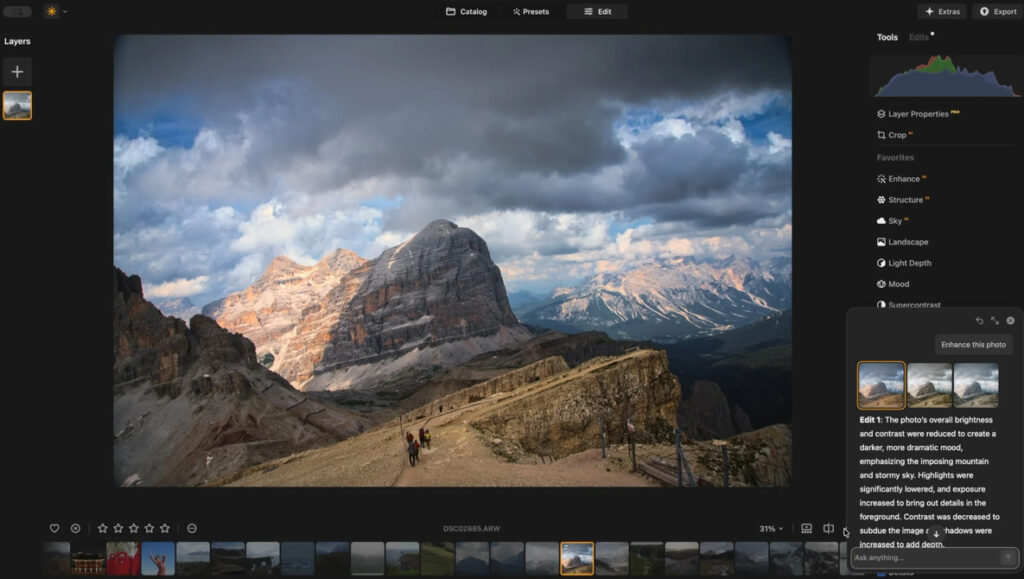
Current owners of Luminar Neo are getting a holiday update with some new and unique features. Besides the usual bug fixes and some speed increases, Neo has added what they call an AI Assistant.
It’s a click-on dialog box that allows you to ask the software how to accomplish a particular goal, and the software responds with a specific list of things you can do to reach that goal.
For some requests, the software even makes the edit for you, giving you three versions of your original image, and it describes the changes the software made.
Of course, if you don’t like what the AI did, you can try again, and if you like it (or you don’t), you are free to make further changes using the Neo editing tools.
The AI Assistant doesn’t yet support Generative, Merge, or Enhancement tools from the Catalog. It can suggest how to use Edit tab tools but won’t apply them automatically, focusing on guiding and inspiring your creativity. More features and guidance are coming in future updates.
Also, Skylum notes that the AI Assistant requires an internet connection, as the AI is being done in the cloud, not locally on your computer.
Trying It Out
I gave the software a pretty dull image I took in Southern Arizona. It gave me multiple options, and I thought the image was somewhat better, but not necessarily better than choices I would have made on my own.
Here’s the original:
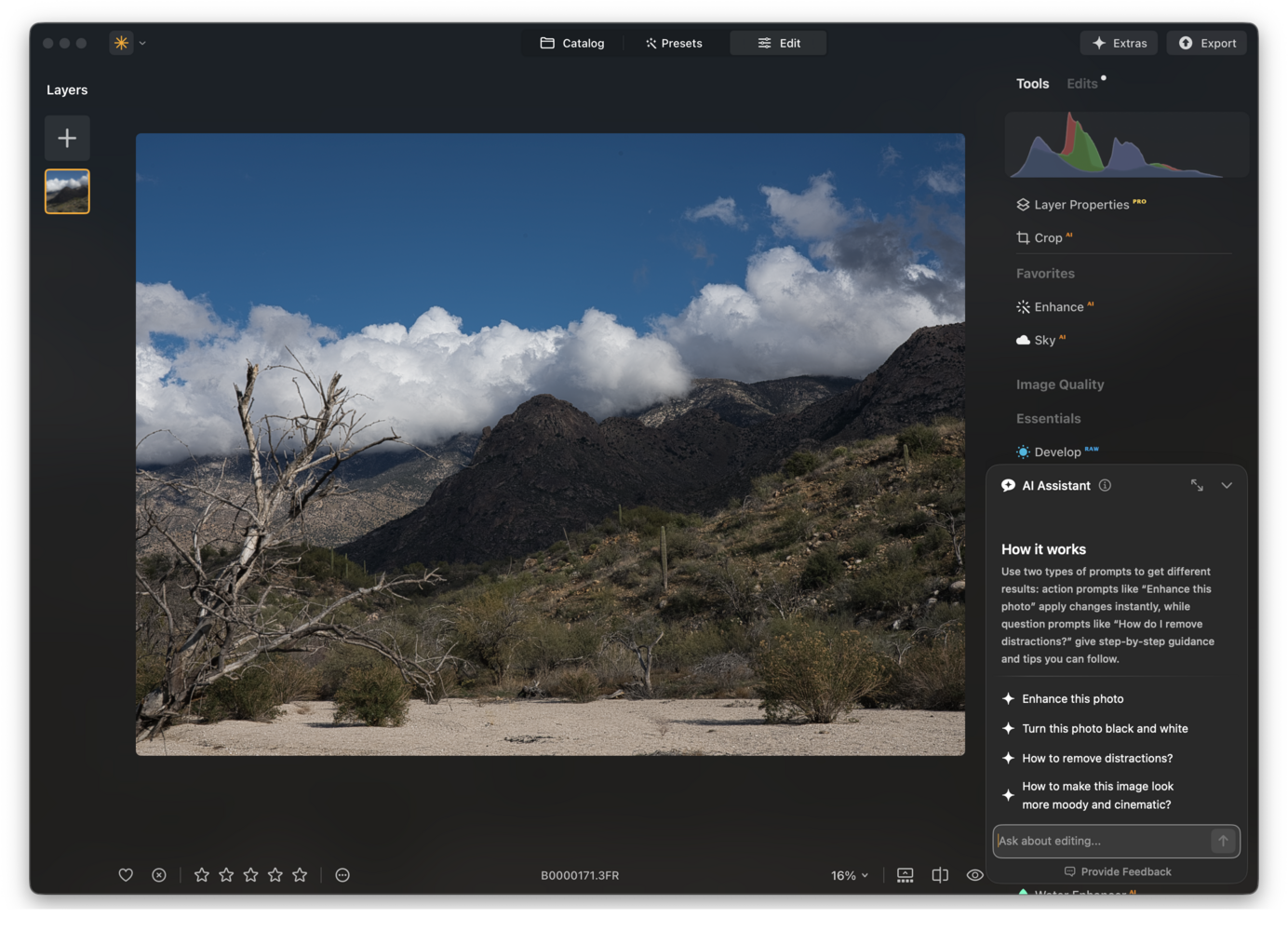
It’s not much, really—something I would probably file away. However, I clicked on the AI icon at the lower right of the screen and clicked on the top option, labeled “Enhance this photo.”
I got three versions of the photo back. I liked number 2 for the color changes, but it wasn’t a dramatic difference. Remember that the AI Assistant doesn’t use any generative AI, so your updated image won’t be all that different.
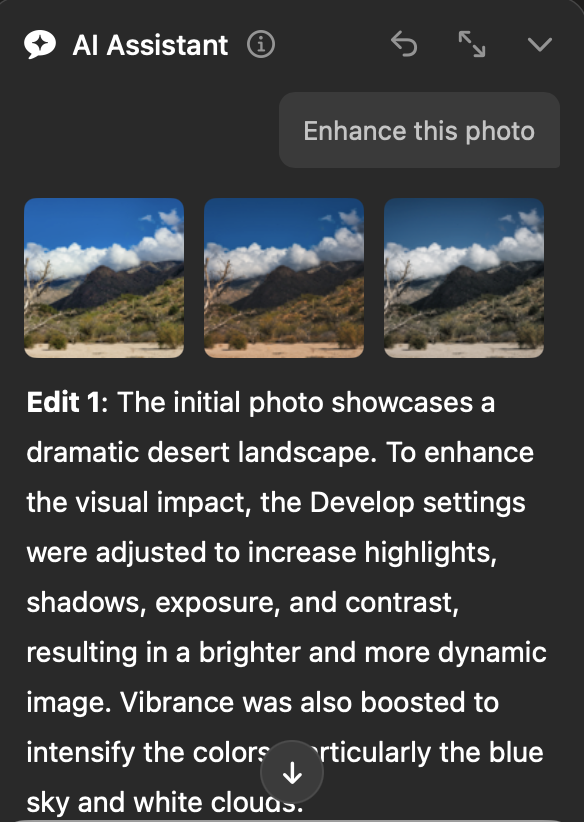
Here’s the AI-edited option 2:
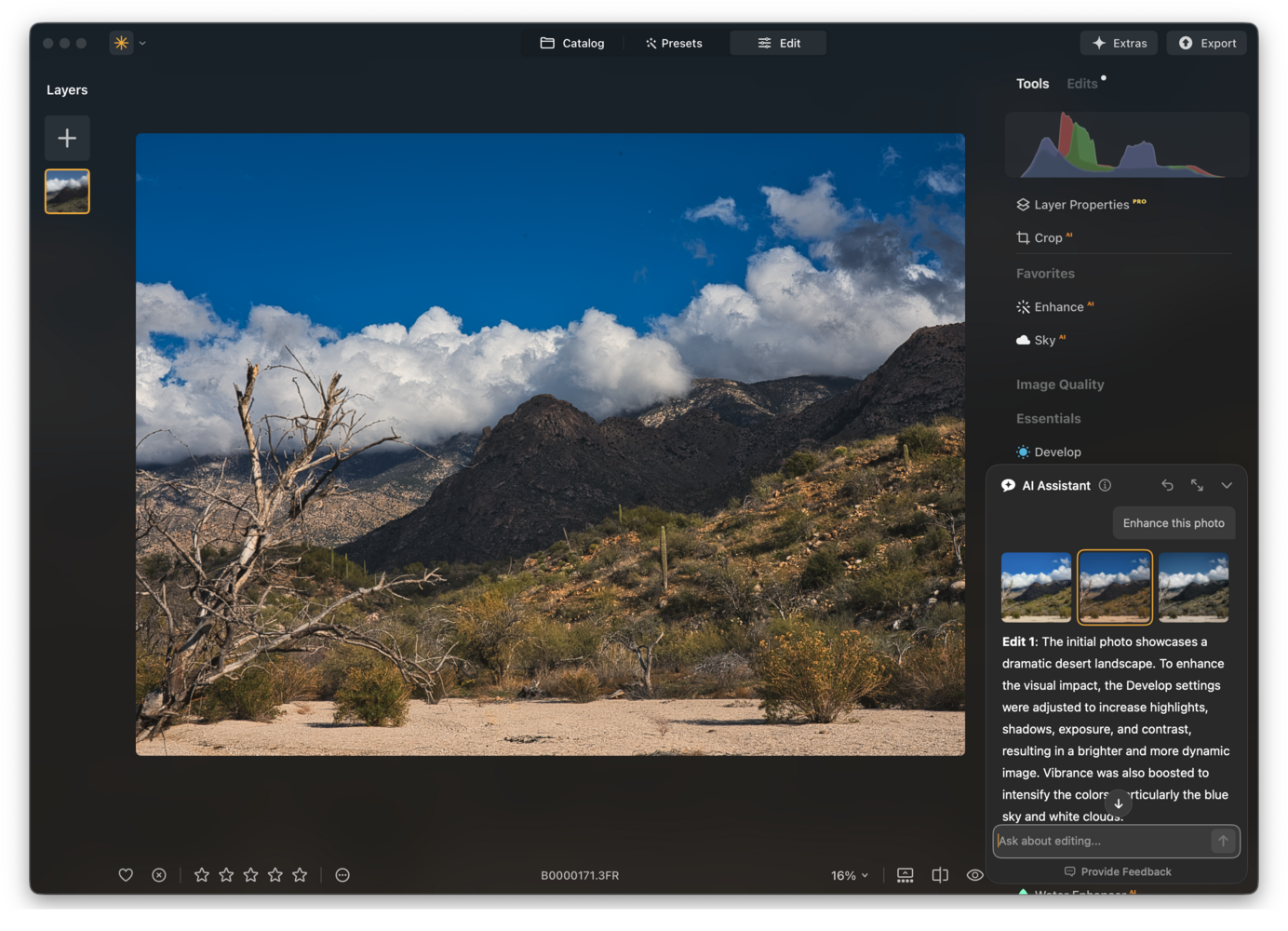
The AI panel will also go through the changes that were made and briefly explain the rationale behind the changes. That makes it a worthwhile learning tool for less experienced photo editors. Here’s part of the AI editing rationale:
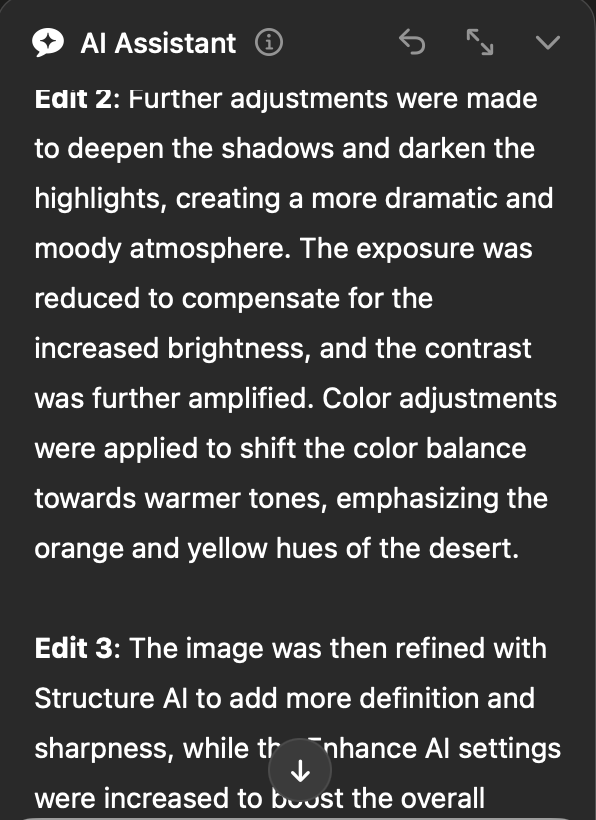
You can also ask the AI Assistant questions, like “How can I remove people from an image?” Rather than do it, it will offer instructions with direct links to the tools you will want to use to accomplish the task.
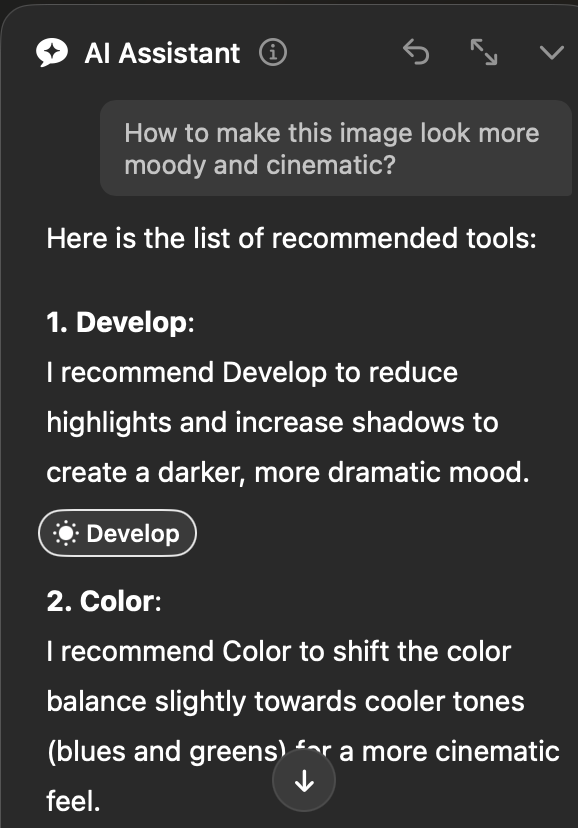
It’s all pretty clever and useful, although Adobe Photoshop, as an example, allows you to type a detailed query and its AI will do the task directly, not point you to the proper tools. It will also use generative AI, creating parts of the image, not enhancing it.
Who Is the AI Assistant For?
I think everyone will find it somewhat useful. For experienced photographers, it’s another set of eyes on your images, making suggestions. I found it interesting but not all that useful. As we know, photographers have their own styles, and the AI doesn’t know what our styles are. In all the example images I gave to the AI Assistant, I found my own edits were better and more organic.
For a novice editor, this new Neo feature may be more useful, especially the reasons the AI feature gives for the changes—some of which are helpful and seem to be more on target as general suggestions.
I do have some worries about these features slowly draining the humanity out of photography, which is a mixture of art and science. I feel this feature may be a bit too much science and not enough art.
How to Get the AI Assistant
It’s part of the latest update to Luminar Neo. If you’ve subscribed, it has already appeared as an update or will soon. If you want more info and pricing hit the Skylum website.
Finally
I think this is an interesting feature, but not as compelling as the last Luminar Neo update, which had some incredible photo restoration tools and relighting tools that many photographers are quite excited about. I didn’t find it dramatically improved any of the unedited images I gave it, but your mileage may vary. For less experienced editors, they may find the AI Assistant makes some worthwhile changes.